Thursday, 31 August 2017

Adding Maps 3: Integrating Google map with OBIEE through MapViewer

In continuation to my earlier blogs : Adding Maps 1: Integrating Google Geo chart with OBIEE , and Adding Maps 2: Integrating NAVTEQ / MVDEMO map with OBIEE in this blog I am going discuss on the steps to be done for integrating Google map with OBIEE using MapViewer.

Prerequisites: OBIEE is configure with MVDEMO or NAVTEQ data (refer to Adding Maps 2: Integrating NAVTEQ / MVDEMO map with OBIEE )

Step 1: First we have subscribe to Google Maps APIs
There are various options for subscribing to Google Maps APIs, which can be explored from:


Step 2: Create Tile Layer for Google Maps

• Click on ‘Create Tile Layer’
• It will bring up the window for filling up details to be provided for Google map. Most of the details are predefined.


• Only thing that needs to be provided is the Key. Which you will receive once you subscribe to Google Maps APIs

• Once done you can see the GOOGLE_MAP in the Tile Layer.


Step 3: Add Background Map in OBIEE Analytics

• In OBIEE Administration  Manage Map Data  Background Maps, add a new map for GOOGLE_MAP


• Once Background map is added, then edit is at add the Layers, and set the Zoom Level. 


• To use the Google map, select it from the drop down in Map view while creating an Analysis.


Step 4: For OBIEE 12c – Bug 23516700 – Google Map Fails Due To Content Security Policy Violation Error

a. Symptom
• On attempting to view Google maps, it shows blank page.  (refer Oracle Doc ID 2148973.1)
• The layers with background maps cannot be merged for a customized map
• The status of the below HTTP request fails with reply status as (blocked:csp) -https://maps.google.com/maps/api/js?sensor=false&callback=OM.finishLoadGoogleV3&key=AIzaSyDS1mbolVU2pHVpuEAcolDX-gQMXO0OI_w&_=1464850736427

b. Solution
• Take a backup of Middleware
• Add the below tags in the instanceconfig.xml:

<Security>
<ContentSecurityPolicy>
<Enable>false</Enable>
</ContentSecurityPolicy>
</Security>

• Restart all the services.

Step 5: Verify the Google Map, it should be working now.


From using map in MapViewer point of view it is same as MVDEMO / NAVTEQ and the best part is that the developer will have the privilege to use either of these.

Saturday, 26 August 2017

Adding Maps 2: Integrating NAVTEQ / MVDEMO map with OBIEE

In continuation to my earlier blog : Adding Maps 1: Integrating Google Geo chart with OBIEE , in this blog I am going discuss on the steps to be done for integrating NAVTEQ and MVDEMO map with OBIEE using MapViewer.

First we have downloaded the  ‘SampleApp’ file for NAVTEQ into our Oracle Database.
Oracle provides pre-configured maps, coordinates, and navteq data that we can use in our reports. We need to download the SampleApp / NAVTEQ Data Set.  Download link is given below :

http://www.oracle.com/technetwork/middleware/bi-foundation/obieesamplesarchive-2026956.html
http://www.oracle.com/technetwork/indexes/samplecode/bi-sample-522115.html

Next I have created NAVTEQ schema in our Oracle database (using SYS user).

grant connect, resource, create view to NAVTEQ identified by BISAMPLE;

From command line, run the following import command:

<Oracle DB Home>\server\bin> imp obiee_navteq/obiee_navteq@XE file=obiee_navteq.dmp FULL=Y


After the import is complete, I log into user NAVTEQ, then run these SQL statements:

INSERT INTO user_sdo_maps SELECT * FROM my_maps; 
INSERT INTO user_sdo_themes SELECT * FROM my_themes; 
INSERT INTO user_sdo_styles SELECT * FROM my_styles; 
INSERT INTO user_sdo_cached_maps SELECT * FROM my_tile_cache; 
COMMIT;

This is actually one of the most important steps, as without this the Map Tiles will not appear.

Once done, I open MapViewer by going to the following URL: http://machine.domain:port/mapviewer  (you can get this URL by replacing analytics with mapviewer in your OBIEE URL)

  • Click on the Admin link.
  • Log in to MapViewer using the same administrative user that you use to log in to the WebLogic console and FMW EM console.
  • Click on Configuration. This will open the mapViewerConfig.xml configuration file.

I made the following changes in the xml file:

1. Under <security_config> tag set the following values:

                       <disable_direct_info_request> true </disable_direct_info_request>
                       <disable_info_request> true </disable_info_request>
                       <disable_csf>true</disable_csf>
                       <enforce_security_role> true </enforce_security_role>  

2. Under <proxy_enabled_hosts> tag set the machine name (replace machine.domain by the proper host name where the MapViewer instance is running.)

http://machine.domain:port/mapviewer,http://machine.domain:port/

3. In <Mapperconfig> add DB connection information for NAVTEQ

  <map_data_source name="OBIEE_NAVTEQ_Sample"
                   jdbc_host="db1.sample.com"
                   jdbc_sid="orcl"
                   jdbc_port="1521"
                   jdbc_user="myuser"
                   jdbc_password="!mypassword" 
                   jdbc_mode="thin"
                   number_of_mappers="3"
                   allow_jdbc_theme_based_foi="false"
                   editable="false"
   /> 

Password should start with ‘!’ mark because that tells MapViewer that the password should be encrypted next time the MapViewer instance is restarted. Also, the data source might be lost on restart if the exclamation mark is no included.

For OBIEE 12c

4. In <mds_config> add entry of data source

<mds_config>
…….
<data_source name="[your source]">
<allow_predefined_themes>true</allow_predefined_themes>
<allow_dynamic_themes>true</allow_dynamic_themes>
</data_source>
…….
</mds_config>

Click on "Save and Restart" button to restart the MapViewer application for the changes to take effect.

It brings up the Tiles below:


Next I log in to Analytics and navigate to : Administration >Map Data Management >Manage Map Data >Layers tab >click on Import Layers button(right side) >select my Data Source under "Look in" 


From the list of themes I select any Theme. Then click OK.

Next I edit the layers and map the column in the layer to match the sample data.


Then I go to the Background Maps tab >click on Import Background Maps >select my Data Source under "Look in" >from the list of Tile Layers select the appropriate one.


I edit the background map and add the BI layer. If you want to change the zoom levels at which OBIEE data will be shown do so by clicking on the Zoom levels.


And NAVTEQ data is configured with OBIEE MapViewer. Now we can create an Analysis in OBIEE with a Map View.


In case of using MVDEMO the steps are same, only difference is that we use MVDEMO Schema instead of NAVTEQ schema.

You can download it from :
http://download.oracle.com/otn/other/mapviewer/mvdemo.zip
http://www.oracle.com/technetwork/middleware/mapviewer/downloads/index-100641.html

And the rest of the steps are same.

Sunday, 20 August 2017

Adding Maps 1: Integrating Google Geo chart with OBIEE

It is always very fascinating to display your data in Maps, and let me take the opportunity to decipher the integration of maps in OBIEE. As part of this series I will discuss on :

1. Integrating Google Geo chart (not map)
2. Integrating NAVTEQ / MVDEMO map with OBIEE
3. Integrating Google map with OBIEE through Mapviewer

For these configuration is similar in OBIEE 11g and 12c and I will demonstrate using OBIEE 11g, however I will mention wherever and change is required for 12c.

To start with let's first discuss, what is Google Chart ?

These charts are from Google, based on pure HTML5/SVG technology (adopting VML for old IE versions), so no plugins are required. All of them are interactive, and many are pannable and zoomable.

There are many different types of Google charts available, and these become very handy if you want to certain visualizations which are not available in OBIEE.

Go to https://developers.google.com/chart/interactive/docs/gallery to access these charts.


In this case I use Geo Chart.

There can be different options for look and feel, each one of them comes up with a HTML code. If we just copy and paste the code in a text file and save as HTML file it will show the same map with the same interaction.

For the purpose of this post I have considered the first one.

We can further notice that each one these codes has a piece for data, and the data is hard coded. Our objective is to pass data from OBIEE, rather than hard coding it.

To add a Geo chart in an OBIEE report, first I create a report using Country and Popularity.

Next I add a Narrative view and added  the following code, the columns need to be changed as per criteria.

a. In the Prefix Section :

<html>
  <head>
<script type="text/javascript" src="https://www.gstatic.com/charts/loader.js"></script>
    <script type="text/javascript">
      google.charts.load('upcoming', {'packages':['geochart']});
      google.charts.setOnLoadCallback(drawRegionsMap);
      function drawRegionsMap() {
        var data = google.visualization.arrayToDataTable([
          ['Country', 'Popularity'],

Notice I have changed the column names, this is showing the data labels in map. 

b. In Narrative Section :

['@1',@2] 

This should be preferably in this order only. And @1 should be in '' as it is of type character.

c. In Postfix Section : 

]);
        var options = {
                                backgroundColor: '#81d4fa',
                                colorAxis: {colors: ['#00853f', 'black', '#e31b23']},
                                };
        var chart = new google.visualization.GeoChart(document.getElementById('regions_div'));
        chart.draw(data, options);
      }
    </script>
  </head>
  <body>
    <div id="regions_div" style="width: 900px; height: 500px;"></div>
  </body>
</html>

And I check 'Contains HTML Markup' checkbox.


Final Output will be look like this with Country name and Popularity.


And we have our map .... 😉😉

Monday, 14 August 2017

Auto Refresh OBIEE Dashboard / Report

​Few days back one of my colleagues came up with a strange requirement. His client wants to display one OBIEE Dashboard in the giant screen and wants the reports to be automatically refreshed in the page.

We have 2 ways to achieve this.

1. Refresh the entire page
2. Refresh the individual report

Let's go a little deep into this. But before we begin, one important prerequisite of this is the tables behind the report must be Cache disabled.

1. Refresh the entire page

This one is actually pretty strait forward. What I need is the code below :

<META HTTP-EQUIV = "REFRESH" CONTENT = "60">
<CENTER><p><b>Auto Reload 60 seconds</b></p></CENTER>

I create a simple report, I can take any column from any subject area.


And I add a Static Text view and paste the above code.


The 2nd line is completely optional. If you do not want any text to be displayed, skip this line.


Let me save this report as 'Auto Load'. Next I go to the dashboard page which I want to refresh automatically. In this case I go to Sample Demo Dashboard.


And I place the 'Auto Load' in this page. If You want you can keep this section hidden too.


When I run the page I will see reports getting refreshed after every 60 seconds.


And if you check the session logs, you can get a confirmation for this also.
Next let's focus on doing it for individual reports. 

2. Refresh the individual report

For this one we need to add the script for the reports, which needs to be refreshed. 

First I create a report, which I want to be refreshed automatically.

I create a report with Tile view to show # of Employees

I go to the page, and add the report that needs to be refreshed automatically, and add 'Refresh' link for the report.

Next I view the source of this page and search for 'javascript:HereLink'. It will take me to the code for refresh link. 


In my case it is javascript:HereLink(&#39;d:dashboard~p:f0315tdu3cqtmc6d~r:538mu6nhk4hpmbj0&#39;,&#39;Refresh&#39;)

I need the highlighted portion of the code above to use in my script. I add the script below in a Narrative View in my report

<html>
<body>
<script>
var myVar=setInterval(function(){reportrefresh()},5000);
function reportrefresh()
{
setTimeout("javascript:HereLink('d:dashboard~p:f0315tdu3cqtmc6d~r:538mu6nhk4hpmbj0','Refresh');",1000);
}
</script>
</body>
</html>


I am using 2 functions here,
a. setInterval : calls a function after every t time interval. In this case it is 5000 or 5 secs
b. setTimeout : calls a function after t time. In this case it is 1000 or 1 sec

In the compound view we can see the report getting auto refreshed.

In the dashboard page, where I have this report, I select 'Compound Layout 1' to be displayed.


It is time to test if it is working properly or not. My report is showing # of Employees as 31.

Next I add 4 new rows in my Employee table in the DB.

And I find my report in the dashboard has got automatically refreshed and is showing # of Employees as 35.


And if you check the session logs, you can get a confirmation for this also.


Pretty cool huh ... 😎😎

Monday, 31 July 2017

The Beauty of MLTS in OBIEE RPD

We can achieve complex logic in the physical query using MLTS in OBIEE RPD to achieve. This post intended to describe one of such cases.

Couple of days back, I came across a very special requirement (though not very ideal). 
  • There are 2 Facts and a few Conformed Dimensions. For the purpose of this post let's take the tables we have mentioned earlier in Putting Multiple Rows into a Single Row. In this case ALLOCATION_F, SKILL_MATRIX_F and EMPLOYEE_D (as the conformed dimension). 
  • These 2 facts are again joined with each other, with outer towards one of them. We consider SKILL_MATRIX_F is on the outer side. 
  • There are both Measures and Attributes in the facts. In this case I am going to consider the foreign keys (without aggregation) as the attributes
  • While columns are selected from only one of the facts or one fact and the conformed dimensions, the query doesn't include the other fact. However when columns (measure or attribute) columns are selected from both the facts, with / without the conformed dimension the query must contain both the facts outer joined.
  • While the query is forming with both the facts and the conformed dimensions the data set should be like (Fact 1 + Conformed  Dim ) Left Outer Join (Fact 2 + Conformed Dim ). So that no record from Fact 1 (in our case SKILL_MATRIX_F) gets rejected. 
  • Both the facts work with any combination of measure or attribute columns select with each other.
Our physical looks like,
I create 2 aliases of EMPLOYEE_D as EMPLOYEE_D1 and EMPLOYEE_D2 and join them with one fact each.
The reason for using 2 alias is to maintain the outer join between the facts. Otherwise while the query is being generated, it will be like (Fact 1 Left Outer Join Fact 2) Inner Join Conformed Dim. Which negates the outer join. But with 2 alias it will be like (Fact 1 + Conformed Dim Alias 1 ) Left Outer Join (Fact 2 + Conformed Dim Alias 2).

Next I create 1 logical fact and 1 logical dimension in the BMM.


I put both the aliases of the Conformed dimension in the same logical dimension. And create a single logical facts for both the physical facts. In the LTS I have renamed EMPLOYEE_D1 as Employee Dim Skill and EMPLOYEE_D2 as Employee Dim Allocation. All the columns in Dim - Employee are mapped to both the LTS.


In the fact I have 3 LTS. One from each of the facts and one combining both of them. I rename LTS for ALLOCATION_F as Allocation.


And SKILL_MATRIX_F as Skill.


I name the combined one as Skill + Allocation, where it is ALLOCATION_F Right Outer Join SKILL_MATRIX_F.

The logical fact and dimension are inner joined with each other.

In the logical fact each column is mapped from 2 LTS (individual fact and combined fact).


I add 2 measure columns as # of Skills (= count distinct SKILL_SID) and # of Projects (= count distinct PROJECT_SID). And I rename SKILL_SID as Skill Attribute and PROJECT_SID as Project Attribute, these 2 will be my attribute columns from the facts.

The most important part of the MLTS is the way these are ordered. For this given case in dimension the order will be,

  1. Employee Dim Skill
  2. Employee Dim Allocation

And in the fact the order of the MLTS will be,

  1. Allocation
  2. Skill + Allocation
  3. Skill

Point to be noted I am reversing the order of Skill and Allocation in the fact and dimension.

Next I expose the columns in the Presentation Layer.

Now it is time to validate the functionality. For that I will be going through several test cases to cover all the possible scenarios.

Test Case 1: Employee Dimension + Measure from Skill Fact
select D1.c1 as c1, D1.c2 as c2, D1.c3 as c3 from ( select 0 as c1,
     D1.c2 as c2,
     D1.c1 as c3
from 
     (select count(distinct T82720.SKILL_SID) as c1,
               T83197.EMPLOYEE_NAME as c2
          from 
               EMPLOYEE_D T83197 /* EMPLOYEE_D1 */ ,
               SKILL_MATRIX_F T82720
          where  ( T82720.EMPLOYEE_SID = T83197.EMPLOYEE_SID ) 
          group by T83197.EMPLOYEE_NAME
     ) D1
order by c2 ) D1 where rownum <= 65001

Test Case 2: Employee Dimension + Measure from Allocation Fact
select D1.c1 as c1, D1.c2 as c2, D1.c3 as c3 from ( select 0 as c1,
     D1.c2 as c2,
     D1.c1 as c3
from 
     (select count(distinct T82710.PROJECT_SID) as c1,
               T83201.EMPLOYEE_NAME as c2
          from 
               EMPLOYEE_D T83201 /* EMPLOYEE_D2 */ ,
               ALLOCATION_F T82710
          where  ( T82710.EMPLOYEE_SID = T83201.EMPLOYEE_SID ) 
          group by T83201.EMPLOYEE_NAME
     ) D1
order by c2 ) D1 where rownum <= 65001

Test Case 3: Employee Dimension + Measure from Allocation Fact + Measure from Skill Fact
select D1.c1 as c1, D1.c2 as c2, D1.c3 as c3, D1.c4 as c4 from ( select 0 as c1,
     D1.c3 as c2,
     D1.c2 as c3,
     D1.c1 as c4
from 
     (select count(distinct T82720.SKILL_SID) as c1,
               count(distinct T82710.PROJECT_SID) as c2,
               T83197.EMPLOYEE_NAME as c3
          from 
               EMPLOYEE_D T83197 /* EMPLOYEE_D1 */ ,
               SKILL_MATRIX_F T82720 left outer join ALLOCATION_F T82710 On T82710.ALL_SM_SID = T82720.ALL_SM_SID
          where  ( T82720.EMPLOYEE_SID = T83197.EMPLOYEE_SID ) 
          group by T83197.EMPLOYEE_NAME
     ) D1
order by c2 ) D1 where rownum <= 65001

Test Case 4: Employee Dimension + Measure from Allocation Fact + Measure from Skill Fact + Attribute from Skill Fact
select D1.c1 as c1, D1.c2 as c2, D1.c3 as c3, D1.c4 as c4, D1.c5 as c5 from ( select 0 as c1,
     D1.c4 as c2,
     D1.c3 as c3,
     D1.c2 as c4,
     D1.c1 as c5
from 
     (select count(distinct T82720.SKILL_SID) as c1,
               count(distinct T82710.PROJECT_SID) as c2,
               T82720.SKILL_SID as c3,
               T83197.EMPLOYEE_NAME as c4
          from 
               EMPLOYEE_D T83197 /* EMPLOYEE_D1 */ ,
               SKILL_MATRIX_F T82720 left outer join ALLOCATION_F T82710 On T82710.ALL_SM_SID = T82720.ALL_SM_SID
          where  ( T82720.EMPLOYEE_SID = T83197.EMPLOYEE_SID ) 
          group by T82720.SKILL_SID, T83197.EMPLOYEE_NAME
     ) D1
order by c2, c3 ) D1 where rownum <= 65001

Test Case 5: Employee Dimension + Measure from Allocation Fact + Measure from Skill Fact + Attribute from Allocation Fact
select D1.c1 as c1, D1.c2 as c2, D1.c3 as c3, D1.c4 as c4, D1.c5 as c5 from ( select 0 as c1,
     D1.c4 as c2,
     D1.c3 as c3,
     D1.c2 as c4,
     D1.c1 as c5
from 
     (select count(distinct T82720.SKILL_SID) as c1,
               count(distinct T82710.PROJECT_SID) as c2,
               T82710.PROJECT_SID as c3,
               T83197.EMPLOYEE_NAME as c4
          from 
               EMPLOYEE_D T83197 /* EMPLOYEE_D1 */ ,
               SKILL_MATRIX_F T82720 left outer join ALLOCATION_F T82710 On T82710.ALL_SM_SID = T82720.ALL_SM_SID
          where  ( T82720.EMPLOYEE_SID = T83197.EMPLOYEE_SID ) 
          group by T82710.PROJECT_SID, T83197.EMPLOYEE_NAME
     ) D1
order by c2, c3 ) D1 where rownum <= 65001

Test Case 6: Measure from Allocation Fact + Measure from Skill Fact + Attribute from Skill Fact
select D1.c1 as c1, D1.c2 as c2, D1.c3 as c3, D1.c4 as c4 from ( select 0 as c1,
     D1.c3 as c2,
     D1.c2 as c3,
     D1.c1 as c4
from 
     (select count(distinct T82720.SKILL_SID) as c1,
               count(distinct T82710.PROJECT_SID) as c2,
               T82720.SKILL_SID as c3
          from 
               SKILL_MATRIX_F T82720 left outer join ALLOCATION_F T82710 On T82710.ALL_SM_SID = T82720.ALL_SM_SID
          group by T82720.SKILL_SID
     ) D1
order by c2 ) D1 where rownum <= 65001

Test Case 7: Measure from Allocation Fact + Measure from Skill Fact + Attribute from Allocation Fact
select D1.c1 as c1, D1.c2 as c2, D1.c3 as c3, D1.c4 as c4 from ( select 0 as c1,
     D1.c3 as c2,
     D1.c2 as c3,
     D1.c1 as c4
from 
     (select count(distinct T82720.SKILL_SID) as c1,
               count(distinct T82710.PROJECT_SID) as c2,
               T82710.PROJECT_SID as c3
          from 
               SKILL_MATRIX_F T82720 left outer join ALLOCATION_F T82710 On T82710.ALL_SM_SID = T82720.ALL_SM_SID
          group by T82710.PROJECT_SID
     ) D1
order by c2 ) D1 where rownum <= 65001

Test Case 8: Measure from Allocation Fact + Measure from Skill Fact
select D1.c1 as c1, D1.c2 as c2, D1.c3 as c3 from ( select distinct 0 as c1,
     D1.c2 as c2,
     D1.c1 as c3
from 
     (select count(distinct T82720.SKILL_SID) as c1,
               count(distinct T82710.PROJECT_SID) as c2
          from 
               SKILL_MATRIX_F T82720 left outer join ALLOCATION_F T82710 On T82710.ALL_SM_SID = T82720.ALL_SM_SID
     ) D1 ) D1 where rownum <= 65001

Test Case 9: Employee Dimension + Measure from Allocation Fact + Measure from Skill Fact + Attribute from Allocation Fact + Attribute from Skill Fact
select D1.c1 as c1, D1.c2 as c2, D1.c3 as c3, D1.c4 as c4, D1.c5 as c5, D1.c6 as c6 from ( select 0 as c1,
     D1.c5 as c2,
     D1.c4 as c3,
     D1.c3 as c4,
     D1.c2 as c5,
     D1.c1 as c6
from 
     (select count(distinct T82720.SKILL_SID) as c1,
               count(distinct T82710.PROJECT_SID) as c2,
               T82720.SKILL_SID as c3,
               T82710.PROJECT_SID as c4,
               T83197.EMPLOYEE_NAME as c5
          from 
               EMPLOYEE_D T83197 /* EMPLOYEE_D1 */ ,
               SKILL_MATRIX_F T82720 left outer join ALLOCATION_F T82710 On T82710.ALL_SM_SID = T82720.ALL_SM_SID
          where  ( T82720.EMPLOYEE_SID = T83197.EMPLOYEE_SID ) 
          group by T82710.PROJECT_SID, T82720.SKILL_SID, T83197.EMPLOYEE_NAME
     ) D1
order by c2, c4, c3 ) D1 where rownum <= 65001

The design has worked in all the above test case.

I would like to mention again that, this is a special case that I have come across in one of the projects, and not a very ideal scenario. However it depicts how we can use MLTS in OBIEE RPD to achieve complex SQL logic. 

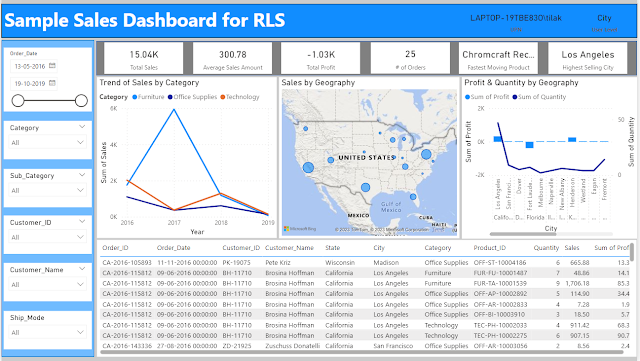
Implementing & Testing Row Level Security in Power BI

I have suffered a great deal of pain while implementing and more so while validating Row Level Security in Power BI. Let me try to capture a...